
Set Up IPTV On MAG Box
For MAG 254, 256, 322, 324, 420, 520, 524 and other Infomir MAG boxes. The player is built in: send us your box's MAC address, add the portal URL we send back, and your channels load on restart.
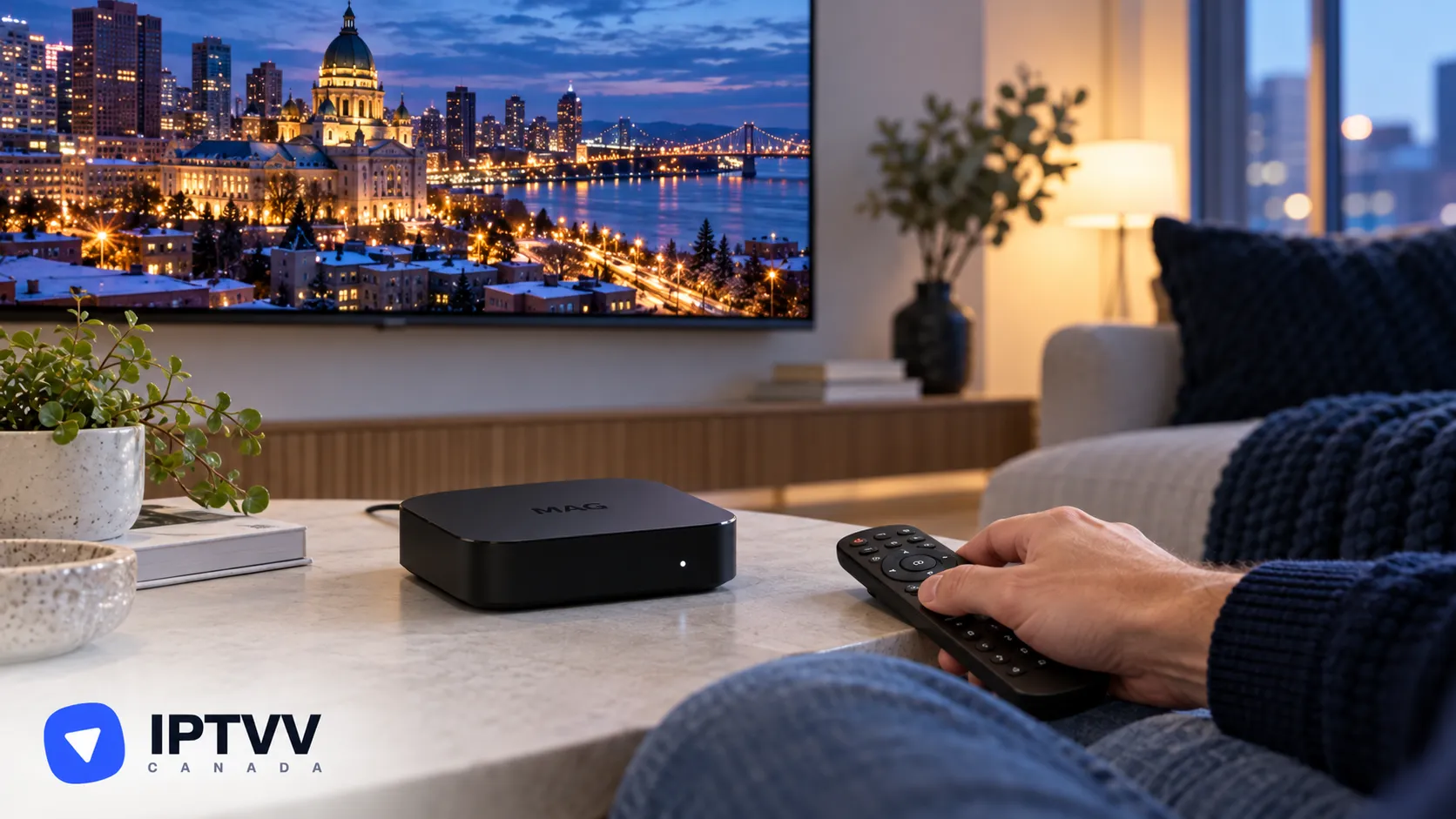
Setting up IPTV on a MAG box takes about 10 minutes: send the MAC address printed on your box to IPTV Canada support, add the portal URL we send back under the box’s Portals settings and restart it. An IPTV free trial works the same way; mention the MAC address when you request it.
1. How IPTV Works On A MAG Box
A MAG box has its own player built in and connects to a portal instead of signing in with a username and password: we register your box’s MAC address on our side, you enter the portal URL on the box, and the channels, TV guide and on-demand library load on restart. This guide covers the Infomir MAG 254, 256, 322, 324, 420, 520, 524 and similar models.
2. What You Need Before You Start
You need your box’s MAC address, a message to our support team, and about 10 minutes once the portal URL arrives.
- Your MAC address: printed on the sticker under the box (it starts with
00:1A:79) and shown on screen under Settings, System settings, Device info. - Your IPTVV order or trial request, so we can match the box to your plan.
- An internet connection of at least 10 Mbps for HD, 15 to 20 Mbps for Full HD and 25 Mbps or more for 4K, by Ethernet if the box has a port.
3. Which Player To Use
The built-in portal player is the one to use on a MAG box: there is nothing to install, and it’s what the box is designed for.
| Player | Price | Where it is |
|---|---|---|
| Built-in portal (recommended) | Included with the box | Settings, System settings, Servers, Portals |
MAG boxes don’t run Android, so apps like XCIPTV or IPTV Smarters Pro don’t install on them. If you’d rather use those players, a Fire TV Stick or Google TV device in a free HDMI port runs them with a username and password login.
4. Register Your MAC Address
Send your MAC address to our support team, and we’ll register the box and reply with your portal URL.
- Read the MAC address from the sticker under the box, or open Settings, System settings, Device info and note it from the screen.
- Contact support with the MAC address, written exactly as shown with its colons, and your order number or trial request.
- Wait for our reply with the portal URL. Keep that message: you’ll type the URL into the box in the next step.
5. Add The Portal URL On The Box
Enter the portal URL under Portals, exactly as we sent it, and restart the box. Letters and symbols must match character for character.
- From the box’s home screen, open Settings (the inner portal, sometimes labelled System settings).
- Open Servers, then Portals.
- In Portal 1 name, type any name, for example IPTVV.
- In Portal 1 URL, type the portal URL from our message.
- Press OK to save, then Exit until the box asks to restart, and confirm. If it doesn’t ask, unplug the box for 10 seconds and plug it back in.
6. Load The TV Guide, Favourites And On-Demand Library
Your channels, TV guide, movies and series load on their own after the restart, usually within a minute or two. Then set up the list the way you’ll use it:
- Open TV on the home screen, pick a group, then a channel.
- Highlight a channel you watch often, press Menu (or the F keys shown at the bottom) and choose Add to favourites.
- Open Movies and Series on the home screen for the on-demand library.
- The TV guide opens with the EPG button or from the channel list menu.
7. If The Portal Won’t Load
If the box shows a loading screen, a blank page or “page load error”, the portal URL is mistyped or the MAC address we registered doesn’t match the box. Your options:
- Check the URL: go back to Portals and compare it character by character with our message; a missing slash or letter is the usual cause.
- Check the MAC: the registered MAC must be the one under Device info on this box, not another box in the house. Send it again if in doubt.
- Restart twice: unplug the box, wait 10 seconds, plug it in, and give it a full minute.
- Switch to a stick: a Fire TV Stick or Google TV device in a free HDMI port runs the Android players with a username and password login; follow its guide.
8. Best Picture And Watching On More Than One Screen
Give the box at least 10 Mbps for HD, 15 to 20 Mbps for Full HD and 25 Mbps or more for 4K. For the steadiest stream:
- Use the box’s Ethernet port: older MAG models have weak Wi-Fi, and a cable fixes most buffering.
- In Settings, System settings, Video, set the output to match your TV (1080p for Full HD, 4K on the models and plans that support it).
- Each box or screen watching at the same time counts as one connection, so pick a plan with enough screens for your home on the IPTV Subscription page.
9. Troubleshooting, Performance And Privacy
The fix for most buffering is to restart the router first, then the box, and to use the Ethernet port. Other quick fixes:
- Channels play but the guide is empty: restart the box; the guide loads after the channels.
- Sound out of sync: in Settings, System settings, Audio, change the output mode, or switch the channel to its HD or FHD twin.
- The box is slow to change channels: hide the groups you never watch, and give an older model a minute on first load.
- Buffering only in the evening: your internet provider may be slowing video traffic. MAG boxes can’t run a VPN app, so the VPN goes on your router; see our VPN for IPTV guide.
- Still stuck? Contact our support team: we answer 24/7 in English or French.
10. Legal And Practical Notes For Canada
IPTV is a legal technology in Canada when it’s used with licensed content, and the Copyright Act applies to what you stream, so the box is never the risk: the source of the channels is. Add only the portal from our message, skip any box or portal that arrives “pre-loaded” with channels, and keep your plan to the boxes you registered. Your IPTVV subscription is paid once in CAD, never renews on its own, and is covered by a 7-day money-back guarantee.
Frequently Asked Questions
Where do I find the MAC address on a MAG box?
On the sticker under the box, starting with 00:1A:79, and on screen under Settings, System settings, Device info.
Can I move my plan to a new MAG box?
Yes. Send us the new box’s MAC address and we’ll move the registration; the plan itself doesn’t change.
Do I need a username and password on a MAG box?
No. A MAG box connects through the portal URL after we register its MAC address. Username and password logins are for the Android, Apple, smart TV and computer players.
Conclusion
Your MAG box is ready in about 10 minutes once your portal URL arrives: send us the MAC address from the sticker, type the portal URL under Settings, Servers, Portals, and restart. Use the Ethernet port, add your favourites on day one, and if a model is too old to keep up, a Fire TV Stick in a free HDMI port runs the Android players with the same plan. Still stuck on a step? Our bilingual support team answers 24/7.
