
VPN For IPTV In Canada: Do You Need One And How To Set It Up
Whether a VPN helps your IPTV service in Canada, when it fixes peak-hour throttling and when it causes buffering, and how to set one up on Fire TV, Android TV, Apple TV, smart TVs and your router.
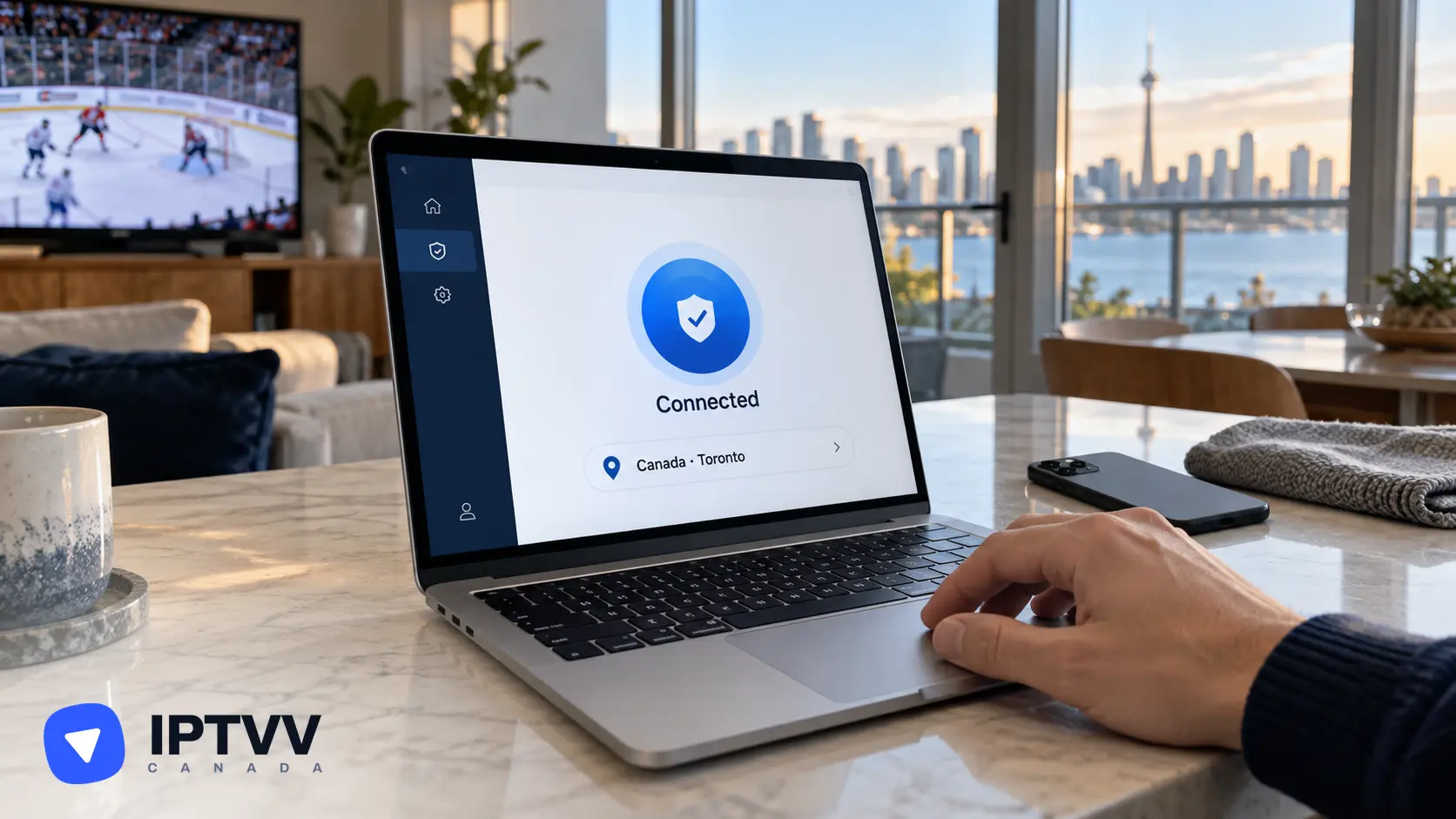
You don’t need a VPN to watch IPTV in Canada, but one helps in two cases: when your internet provider slows video traffic at peak hours, and when you want privacy on a shared or public connection. This guide explains what a VPN changes, how to pick one that doesn’t cause buffering of its own, and how to set it up on every device our IPTV service runs on. If you’re new to IPTV Canada, the IPTV free trial is the easiest way to test your connection with and without a VPN.
1. What A VPN Does For IPTV
A VPN wraps everything your device sends and receives in an encrypted tunnel to a VPN server, so your internet provider sees encrypted traffic going to one address instead of video streams going to a streaming server. Three things follow from that:
- Your provider can’t tell it’s video, so traffic management rules that slow video traffic don’t apply to it.
- Anyone on the same Wi-Fi can’t see what you watch, which matters on shared, hotel or campus networks.
- Your streams take a detour through the VPN server, which adds a little distance. A nearby server adds almost nothing; a far-away one adds buffering.
A VPN doesn’t change the channels you receive, doesn’t replace your login and doesn’t make a slow connection faster. It’s a privacy and routing tool, nothing more.
2. When You Need A VPN For IPTV In Canada (And When You Don’t)
You need a VPN when streams only buffer at peak hours while a speed test looks fine, and you don’t need one when everything already plays smoothly. Here’s the honest split:
| Situation | VPN? |
|---|---|
| Channels play fine, day and night | No |
| Buffering at 7 to 11 p.m. only, speed test is fine | Yes, likely throttling |
| Streaming on shared, hotel or campus Wi-Fi | Yes, for privacy |
| Buffering all day on a slow connection | No, fix the connection first |
| You want nobody on your network to see what you watch | Yes |
Some Canadian internet providers apply traffic management when their network is busy, and video is the first thing they slow. If a VPN makes your 8 p.m. buffering disappear, that was the cause. If nothing changes, turn it off and work through our Is IPTV down? checklist instead.
3. What To Look For In A VPN For Streaming
Pick a paid VPN with Canadian servers, the WireGuard protocol, apps for your TV device and enough device slots for your home. The checklist:
- Servers in Canada (Toronto, Montreal and Vancouver at least), so your traffic stays close.
- WireGuard (some apps call it by their own name): it’s the fastest protocol and the one to use for video.
- Apps for Fire TV, Android TV and Apple TV, so you can install it on the device that plays the channels.
- Router support, if you watch on a Samsung, LG, Roku or VIDAA TV that can’t run a VPN app.
- Enough simultaneous devices for every screen in the house, and no bandwidth cap.
- A no-logs policy and a kill switch, so a dropped VPN doesn’t quietly expose your traffic.
- Split tunnelling, so only the IPTV player goes through the VPN and your other apps stay direct.
Free VPNs fail most of these points: they cap speed, limit data, drop at the worst moment and often make money from your browsing data, which defeats the privacy reason for using one.
4. What You Need Before You Start
You need a VPN subscription, the VPN app for your device, your IPTVV login and a connection of at least 10 Mbps per screen. Have these ready:
- A VPN account from a provider that meets the checklist in section 3.
- The VPN app installed from your device’s official store (Amazon Appstore, Play Store or App Store), never from a random website.
- Your IPTV login: the server URL, username and password from your welcome email.
- A speed baseline: run a speed test with the VPN off, so you can compare later.
5. Set Up A VPN On Fire TV And Android TV
Install the VPN app from the Amazon Appstore or the Play Store, sign in, pick a Canadian server and connect, then open your IPTV player. On Fire TV:
- From the home screen, go to Find, then Search, and type the VPN’s name.
- Select the app and press Get (or Download), then Open.
- Sign in to your VPN account.
- Choose a Canadian server (the closest city to you) and press Connect. Allow the connection request when Fire OS asks.
- Press Home, open your IPTV player (OTT Navigator, TiviMate or iMPlayer) and play a channel.
On Android TV and Google TV, the steps are the same, with the app coming from the Play Store (open the Apps tab on Google TV and use Search for apps).
6. Set Up A VPN On Apple TV, iPhone And iPad
Install the VPN app from the App Store, sign in, pick a Canadian server and connect, then open UHF or iMPlayer. Apple TV supports VPN apps on tvOS 17 and newer:
- Open the App Store on the Apple TV and search the VPN’s name.
- Select Get, then Open, and sign in.
- Allow the VPN configuration when tvOS asks.
- Choose a Canadian server and press Connect.
- Press the TV button, open UHF and play a channel.
On iPhone and iPad, the same app connects in one tap, and Picture in Picture keeps the game playing while you check the score elsewhere.
7. Set Up A VPN For Samsung, LG, Roku And VIDAA TVs
Samsung, LG, Roku and VIDAA TVs can’t run a VPN app, so you put the VPN on the router instead, or share a VPN connection from a computer or phone. Three ways to do it, from best to simplest:
- VPN on the router. Many VPN providers have setup pages for common routers, and some sell routers with the VPN pre-installed. Every device in the house is then covered, including the TV. Pick a Canadian server in the router’s VPN settings.
- A second router just for the TV. A small VPN-capable router behind your main one, with only the TV connected to it, keeps the rest of the house direct.
- Share from a computer. Run the VPN on a Windows laptop, then share its connection as a Wi-Fi hotspot and connect the TV to that hotspot. Fine for a weekend, not ideal every night.
Smart DNS services, which some VPN providers offer for TVs, change where your traffic is routed but don’t encrypt it, so they don’t help with throttling or privacy.
8. Pick The Right Server And Protocol For Speed
Choose the Canadian server closest to you and the WireGuard protocol, and turn on split tunnelling so only the IPTV player uses the VPN. These settings decide whether a VPN helps or hurts:
- Server: the nearest Canadian city. Toronto for Ontario, Montreal for Quebec and the Maritimes, Vancouver for BC. A server in Europe adds enough delay to cause buffering.
- Protocol: WireGuard (or the provider’s version of it). OpenVPN works but is slower on streaming sticks.
- Split tunnelling: add only your IPTV player to the VPN, so updates, speed tests and other apps go direct.
- Kill switch: on, so a dropped VPN pauses traffic instead of silently sending it unprotected.
- Test it: run a speed test with the VPN on. Expect to lose 10 to 20 percent on a nearby server; if you lose half, change server or protocol.
9. Troubleshooting: Buffering, Login Errors And Slow Speeds With A VPN
If streams buffer only when the VPN is on, switch to a closer server or to WireGuard; if the player can’t log in at all, the kill switch or a DNS setting is blocking it. Work through these:
- Turn the VPN off and compare. If the stream plays without it, the VPN server or protocol is the problem, not your IPTV service.
- Change the server to another Canadian city. Servers get busy, and the next one is often faster.
- Switch the protocol to WireGuard, or try another one if WireGuard is already on.
- Check the kill switch if the player shows a connection error right after the VPN drops: reconnect the VPN, then reopen the player.
- Clear the player’s cache (Settings, Applications, the player, Clear cache) after changing VPN settings, so it doesn’t reuse a stale connection.
- Reload the TV guide if channels play but the guide is empty: look for Update EPG in the player’s settings.
10. Legal And Privacy Notes For Canada
Using a VPN is legal in Canada, and so is IPTV when it’s used with licensed content; a VPN never changes what you’re allowed to watch. Keep these points in mind:
- The Copyright Act applies with or without a VPN. A VPN protects your privacy; it doesn’t make an unlicensed stream licensed. Pair it with a registered provider.
- Follow your VPN’s and your IPTV provider’s terms. Using a VPN to pretend you’re in another country can break the terms of the services you use.
- Pick a provider with a published no-logs policy. The whole point of a VPN is that nobody keeps a record of your traffic, including the VPN company.
- Skip free VPNs for streaming. Speed caps and data limits cause the buffering you were trying to fix, and some free apps sell your browsing data.
- Install VPN apps only from official stores. A VPN app sees all your traffic, so it has to be one you trust.
Frequently Asked Questions
Does a VPN stop IPTV buffering?
Yes, when the buffering comes from your internet provider slowing video traffic at peak hours. It won’t fix a slow connection, weak Wi-Fi or an overloaded device, and a far-away VPN server adds buffering of its own.
Is it legal to use a VPN for IPTV in Canada?
Yes. VPNs are legal in Canada and IPTV is a legal technology used with licensed content. The VPN protects your privacy; the content you watch still has to be licensed.
Will a VPN slow down my IPTV?
A little, usually 10 to 20 percent on a nearby Canadian server with WireGuard, which still leaves plenty for HD and 4K on a normal connection. Pick a far server or an old protocol and the loss grows enough to cause buffering.
Do I need a VPN to use IPTVV?
No. IPTVV works without a VPN, with servers in Canada and anti-freeze streaming. A VPN is an option for privacy on shared networks and for homes where the internet provider throttles video in the evening.
Conclusion
A VPN is optional for IPTV in Canada: skip it when everything plays smoothly, use it when peak-hour throttling or a shared network is the problem. Choose a paid VPN with Canadian servers and WireGuard, install it on the device that plays the channels (or on your router for Samsung, LG, Roku and VIDAA TVs), connect to the nearest city and turn on split tunnelling. Last tip: run a speed test with the VPN on and off on the first night, so you know for sure whether it’s helping before you leave it on.
