
Set Up IPTV On BuzzTV Box
For BuzzTV XPL 3000, XRS 4000, XRS 4500, E2000 and other BuzzTV Android boxes. The player is built in, so you only add your IPTVV login with the XC API option.
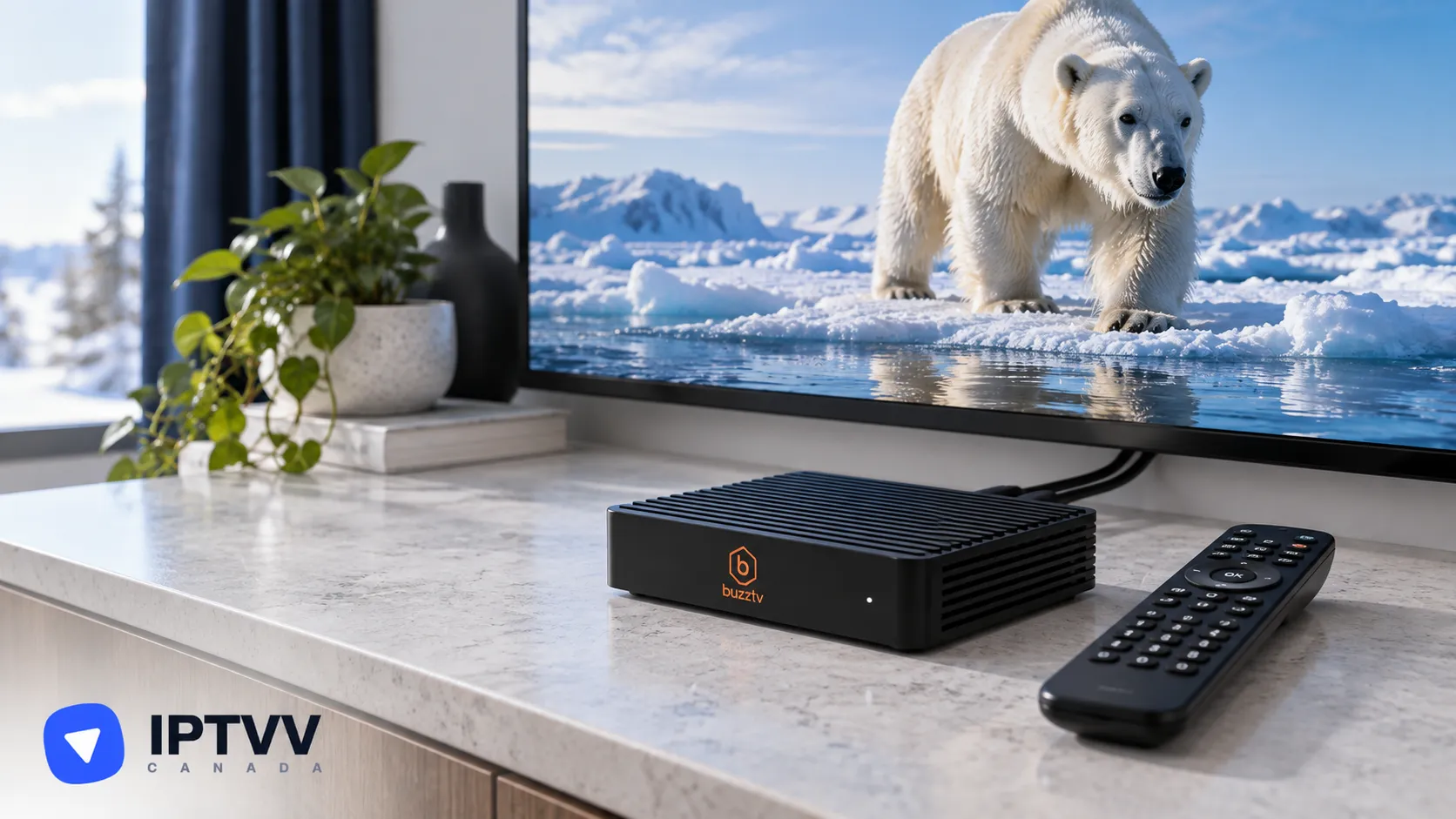
Setting up IPTV on a BuzzTV box takes about 5 minutes: the player is built in, so you only add the login from your IPTV Canada welcome email with the XC API option. An IPTV free trial login works exactly the same way.
1. How IPTV Works On A BuzzTV Box
IPTV on a BuzzTV box runs through the player that comes built in, which streams your channels over the internet with your IPTVV login. BuzzTV boxes run Android, so you can also install a Play Store player later, but the built-in one is the quickest start. This guide covers the XPL 3000, XRS 4000, XRS 4500, E2000 and other BuzzTV boxes.
2. What You Need Before You Start
You need your IPTVV login, your BuzzTV box with its remote and about 5 minutes.
- Your IPTVV login: the server URL (it starts with
http://), username and password from your welcome email. - Your BuzzTV box connected to the internet, ideally with an Ethernet cable.
- An internet connection of at least 10 Mbps for HD, 15 to 20 Mbps for Full HD and 25 Mbps or more for 4K.
3. Which Player To Use
The built-in BuzzTV player is the one to use: it’s already on the box and takes your Xtream Codes login through its XC API option.
| Player | Price | Where it is |
|---|---|---|
| BuzzTV built-in player (recommended) | Included with the box | BuzzTV home screen |
| XCIPTV or iMPlayer | Free | Play Store, as a fallback |
4. Open Server Settings
Open Server Settings from the BuzzTV home screen; there is nothing to install.
- Turn on the box and wait for the home screen.
- Open Server Settings.
- Select XC API Login, then Add XC API Login.
5. Add Your IPTVV Login
Your login is an Xtream Codes login, and the XC API Login screen takes it directly. Capitals count, and there must be no space before or after.
- Fill in the connection:
- Portal name: any name, for example IPTVV;
- Portal URL: your server URL;
- User name and password: from your email.
- Press Connect (or Save).
- Go back to the home screen.
6. Load The TV Guide, Favourites And On-Demand Library
Select Live TV on the home screen and your channel groups, the TV guide and catch-up load together. Then set up the list the way you’ll use it:
- Pick a group, then a channel; the guide shows what’s on now and next.
- Add the channels you watch most to favourites so they’re one click away.
- Open the movies and series sections for the on-demand library.
- If the guide is empty while the channels play, reload the login from Server Settings.
7. If The Login Won’t Connect
If the built-in player won’t connect, check the login details first, then install a Play Store player as a fallback. Your options:
- Check the login: the server URL must start with
http://with no space at the end, and the username and password must match your email letter by letter. - A Play Store player: BuzzTV boxes run Android, so install XCIPTV or iMPlayer from the Play Store and follow the Android TV guide with the same login.
- Contact support with your box model and the message on screen.
8. Best Picture And Watching On More Than One Screen
Give the box at least 10 Mbps for HD, 15 to 20 Mbps for Full HD and 25 Mbps or more for 4K. For the steadiest stream:
- Use the box’s Ethernet port if you can. On Wi-Fi, use the 5 GHz band.
- Match the box’s display setting to your TV’s resolution (4K for 4K channels, included with Premium).
- Each TV watching at the same time counts as one screen, so pick a plan with enough screens for your home on the IPTV Subscription page.
9. Troubleshooting, Performance And Privacy
The fix for most buffering is to restart the router first, then the box, and to use the Ethernet port. Other quick fixes:
- The login won’t connect: check the server URL starts with
http://and has no space at the end, then the username and password letter by letter. - Channels play but the guide is empty: reload the login from Server Settings.
- Sound out of sync: switch the decoder in the player’s settings.
- Buffering only in the evening: your internet provider may be slowing video traffic. A VPN app from the Play Store set to a Canadian server helps; see our VPN for IPTV guide.
- Still stuck? Contact our support team: we answer 24/7 in English or French.
10. Legal And Practical Notes For Canada
IPTV is a legal technology in Canada when it’s used with licensed content, and the Copyright Act applies to what you stream, so the box is never the risk: the source of the channels is. Add only the login from your IPTVV email, skip any portal or app that arrives “pre-loaded” with channels, and keep your login to the screens on your plan. Your IPTVV subscription is paid once in CAD, never renews on its own, and is covered by a 7-day money-back guarantee.
Frequently Asked Questions
Do I need to register my BuzzTV’s MAC address?
No. The XC API Login takes your server URL, username and password directly, with no MAC address registration.
Can I use TiviMate or XCIPTV on a BuzzTV box?
Yes. BuzzTV boxes run Android, so XCIPTV and iMPlayer install from the Play Store and TiviMate installs with Downloader, all with the same login. Follow the Android TV guide for the steps.
Do I need a VPN for IPTV on a BuzzTV box?
No. The service works without one. A VPN helps if your internet provider slows video traffic at peak hours, or for privacy on a shared network.
Conclusion
Your BuzzTV box is an IPTV box in about 5 minutes: open Server Settings, choose XC API Login, enter your server URL, username and password and press Connect. Use the Ethernet port, add your favourites on day one, and if the built-in player ever gives you trouble, XCIPTV from the Play Store works with the same login. Still stuck on a step? Our bilingual support team answers 24/7.
