
Is IPTV Down? How To Tell In Two Minutes And Fix It Fast
A two-minute check that tells you whether your IPTV service is down or the problem is on your end, plus the fixes that solve most freezing, buffering and login errors in Canadian homes.
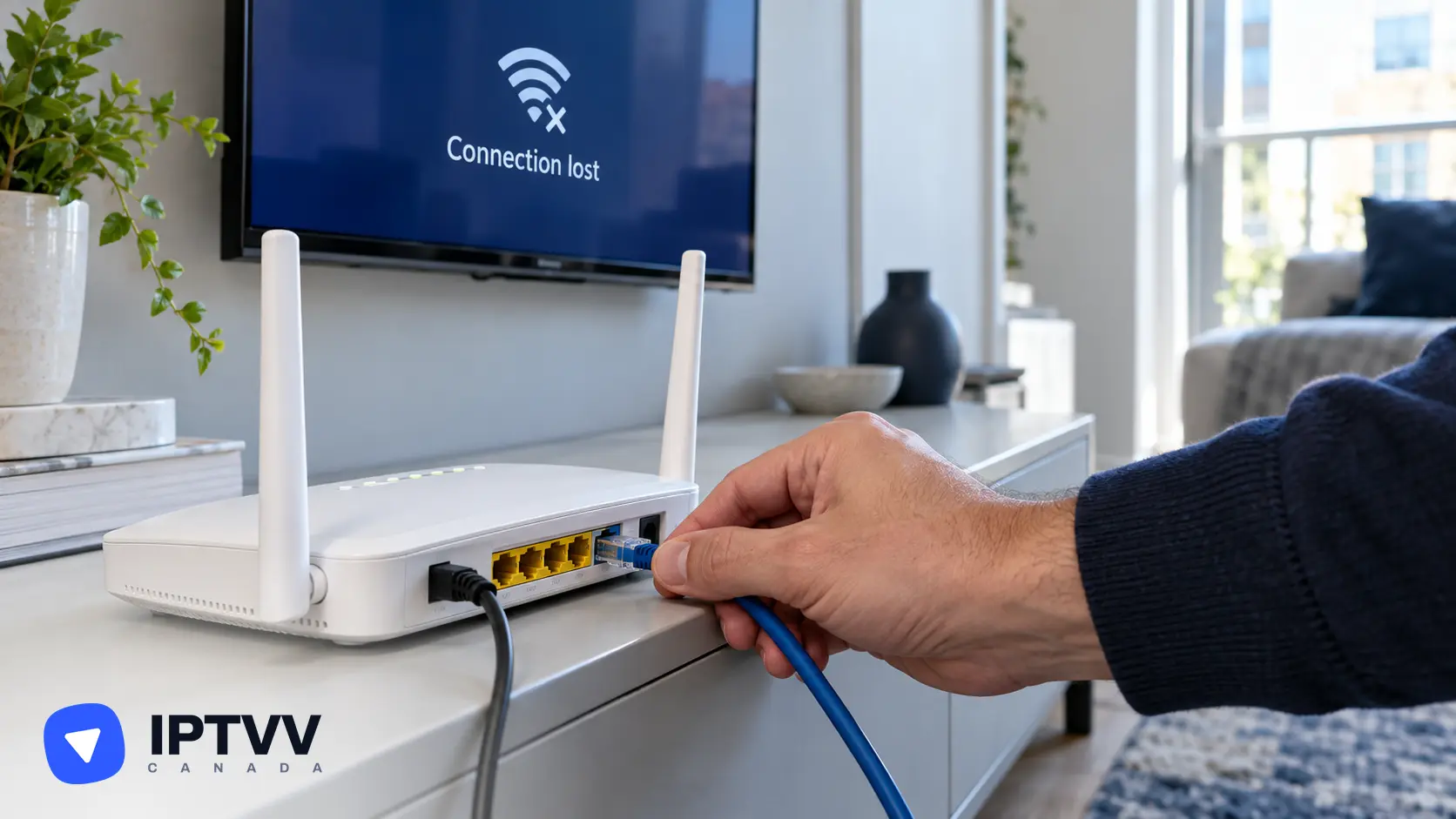
IPTV is rarely down for everyone at once: most “IPTV down” moments are a single channel, a slow connection, an app that needs a restart or a subscription that reached the end of its term. This guide gives you a two-minute check to tell the difference, then the fixes that solve each case. It’s written for customers of IPTV Canada, our IPTV service, but the steps work with any provider, and if you’re still comparing services you can test ours with a 24-hour IPTV free trial.
1. What “IPTV Down” Usually Means
“IPTV down” can mean five different things, and only one of them is an outage on the provider’s side. Before you change anything, it helps to know which one you’re looking at:
| What you see | Most likely cause |
|---|---|
| One channel freezes, the others play | That channel’s source, or a peak-hour spike on it |
| Every channel buffers or freezes | Your connection, Wi-Fi or router |
| “Invalid login”, “expired” or an empty list | Your login details or the end of your term |
| The app crashes or hangs on loading | The player app or a full device |
| Nothing loads on any device, in any app | A real outage or maintenance on the service |
Work through the sections in order and you’ll usually have the picture playing again before you reach the end.
2. The Two-Minute Check: Is It You Or The Service?
Try three channels in different groups, then a movie, then the same login on a second device; if all three work somewhere, the service is up and the problem is local. Run through this list:
- Open a channel in a different group (a Canadian news channel if a sports channel froze).
- Open a movie or series from the on-demand library. On demand comes from a different part of the service than live TV.
- Open the player on a second device, or on your phone using mobile data instead of your Wi-Fi.
- Open another streaming app (YouTube, Netflix). If it buffers too, your internet is the problem, not the IPTV service.
- Still nothing anywhere? Jump to section 9 and contact support.
3. Check Your Internet Speed And Connection
Each screen needs about 10 Mbps for HD, 15 to 20 Mbps for Full HD and 25 Mbps or more for 4K, and a connection that drops below that number at peak time looks exactly like an outage. Run a speed test on the device that’s struggling (or on a phone standing next to it) and compare:
| Quality | Speed per screen |
|---|---|
| HD | 10 Mbps |
| Full HD | 15 to 20 Mbps |
| 4K | 25 Mbps or more |
Every screen watching at the same time needs its own share, so two Full HD streams and one 4K stream need about 65 Mbps together, plus headroom for everything else in the house. A few connection fixes solve most buffering:
- Use Ethernet where you can. Fire TV, Chromecast and Apple TV have optional Ethernet adapters; Shield, Formuler, BuzzTV and most smart TVs have a port.
- Use the 5 GHz Wi-Fi band, and move the router closer or away from the microwave and cordless phones.
- Pause big downloads and cloud backups on other devices during the game.
4. Restart In The Right Order
Unplug the router for 30 seconds, plug it back in, wait for it to fully come up, then restart the streaming device, then open the player. The order matters: a device that reconnects before the router is ready often gets a bad connection that looks like buffering.
- Unplug the router (and the modem, if it’s separate) and count to 30.
- Plug the modem in first, then the router, and wait until the lights settle.
- Restart the Fire TV, Apple TV, smart TV or box.
- Open the player app and try the channel again.
5. Fix Login, “Expired” And Empty-List Errors
An “invalid login” error is almost always a typo, and an “expired” message means your term ended, because IPTVV subscriptions never renew on their own. Check in this order:
- Server URL: it must start with
http://, with no space at the start or end. - Username and password: capitals count, and the letter O and the number 0 are easy to mix up. Copy them from your welcome email rather than retyping.
- End of term: plans are paid once for 3, 6, 12 or 24 months and stop at the end. Pick a new term on the IPTV Subscription page and your login is active again within minutes of payment.
- Too many screens: if more devices are watching than your plan allows, the newest one is refused. Close the player on a device you’re not using.
6. Fix Buffering And Freezing On One Channel Or On Everything
If one channel freezes while the others play, switch to the same channel in another group (the HD or FHD version), and if everything freezes, clear the player’s cache and switch its decoder. The quick fixes, from most to least likely:
- Try the channel’s twin. Most popular channels exist in more than one quality; the other version often plays fine.
- Clear the app’s cache. On Fire TV and Android TV: Settings, Applications, the player, Clear cache. On Chromecast, which has only 8 GB of storage, this fix matters most.
- Switch the decoder. In the player’s settings, change the decoder from hardware to software (or the other way). This also fixes sound that runs ahead of the picture.
- Hide the groups you never watch. A list of 30,000 channels loads faster when the player only draws the groups you use.
- Change players. The same login works in OTT Navigator, XCIPTV, iMPlayer, TiviMate or UHF. If one app struggles on your device, another often doesn’t. Our free IPTV apps guide lists the best one for each device.
7. Peak Hours, Big Events And ISP Throttling In Canada
Saturday night hockey, a championship final and a big fight night are the moments when a weak Wi-Fi link or a throttling internet provider shows up, and they can look like an IPTV outage. Three things happen at once at 7 p.m. on a Saturday:
- Your neighbourhood’s network is busiest, so a cable or wireless connection that tests fine at noon can drop at night.
- Some internet providers slow video traffic when their network is congested, and a VPN hides video traffic from that kind of traffic management. Our VPN for IPTV guide explains when it helps.
- Everyone in the house is online, so the TV is sharing the connection with phones, consoles and downloads.
Plug the TV device into Ethernet, put it on 5 GHz Wi-Fi and pause downloads before the game, and most peak-hour freezes go away.
8. App And Device Problems That Look Like An Outage
An outdated player, a device with no free storage or a VPN pointed at a server across the ocean can all stop channels from loading while the service itself is fine. Check these when the connection tests well:
- Update the player app from its store. Old versions sometimes stop talking to updated servers.
- Free up storage on a Fire TV Stick or Chromecast: delete apps you don’t use and the installer files left in Downloader.
- Check your VPN. If it’s on, pick a Canadian server; a far-away server adds lag and buffering. Turn it off for a minute to compare.
- Reload the TV guide (EPG). An empty guide with working channels is a guide refresh problem, not an outage: look for Update EPG or Refresh in the player’s settings.
- Check the date and time on the device. A wrong clock can break secure connections and the guide.
9. When It Really Is Down: What To Do
If nothing loads on any device, in any app, and your other streaming apps work, contact support with your device, player app, the channel you tried and the time it happened, then give it a few minutes. Our servers run in Canada with 99.9% uptime, and the rare maintenance window is short.
- Send one clear message to our support team: device, app, channel, what the screen says and when it started. We reply in English or French, usually within 15 to 30 minutes, 24/7.
- Don’t re-enter your login over and over, and don’t reinstall the app in a loop. If the service is briefly down, nothing on your end changes that, and repeated failed logins can lock an account.
- Don’t buy a second subscription from another seller in a panic. An anonymous seller that disappears in a week is the real risk, not ten minutes of maintenance.
10. Prevent The Next “Is IPTV Down?” Moment
A wired connection, an up-to-date player and a note of when your term ends prevent most of the problems in this guide. Set these up once:
- Plug the TV device into Ethernet, or move it to 5 GHz Wi-Fi.
- Add your favourite channels to the player’s favourites list, so you have a known-good channel to test with.
- Keep your welcome email, so your login is always one copy-and-paste away.
- Put the end date of your term in your calendar; the plan never renews on its own, so a reminder a week before saves a Saturday night.
- Keep a second player installed with the same login. Switching apps is the fastest fix when one of them misbehaves.
Frequently Asked Questions
Why does my IPTV freeze every few seconds?
Your connection is dropping below the speed the stream needs, usually on Wi-Fi. Move the device to Ethernet or 5 GHz Wi-Fi, pause downloads in the house, and if it only happens at peak hours, try a VPN set to a Canadian server.
Why do channels say “loading” or “no stream” forever?
One channel stuck on loading is that channel’s source; every channel stuck on loading is your login, your connection or the app. Try the channel’s HD or FHD twin first, then run the two-minute check in section 2.
Is IPTV down on Saturday nights?
No, the service runs the same every night, but Saturday night is when home networks and some internet providers are at their busiest. A wired connection and a VPN during the game are the two fixes that work.
How do I know if my IPTV subscription has expired?
The player shows an “expired” or “invalid login” message and the channel list is empty, even though your internet works. IPTVV plans never renew automatically, so pick a new term on the subscription page and your login is active again within minutes.
Conclusion
Most “IPTV down” moments are fixed in minutes with the two-minute check, the right restart order and a wired or 5 GHz connection. Rule out your connection first, then your login, then the app, and only then treat it as an outage and send support one clear message with the details. Final tip: keep a second player app signed in on the same device, because switching apps is the fastest fix there is when one player gets stuck.
