
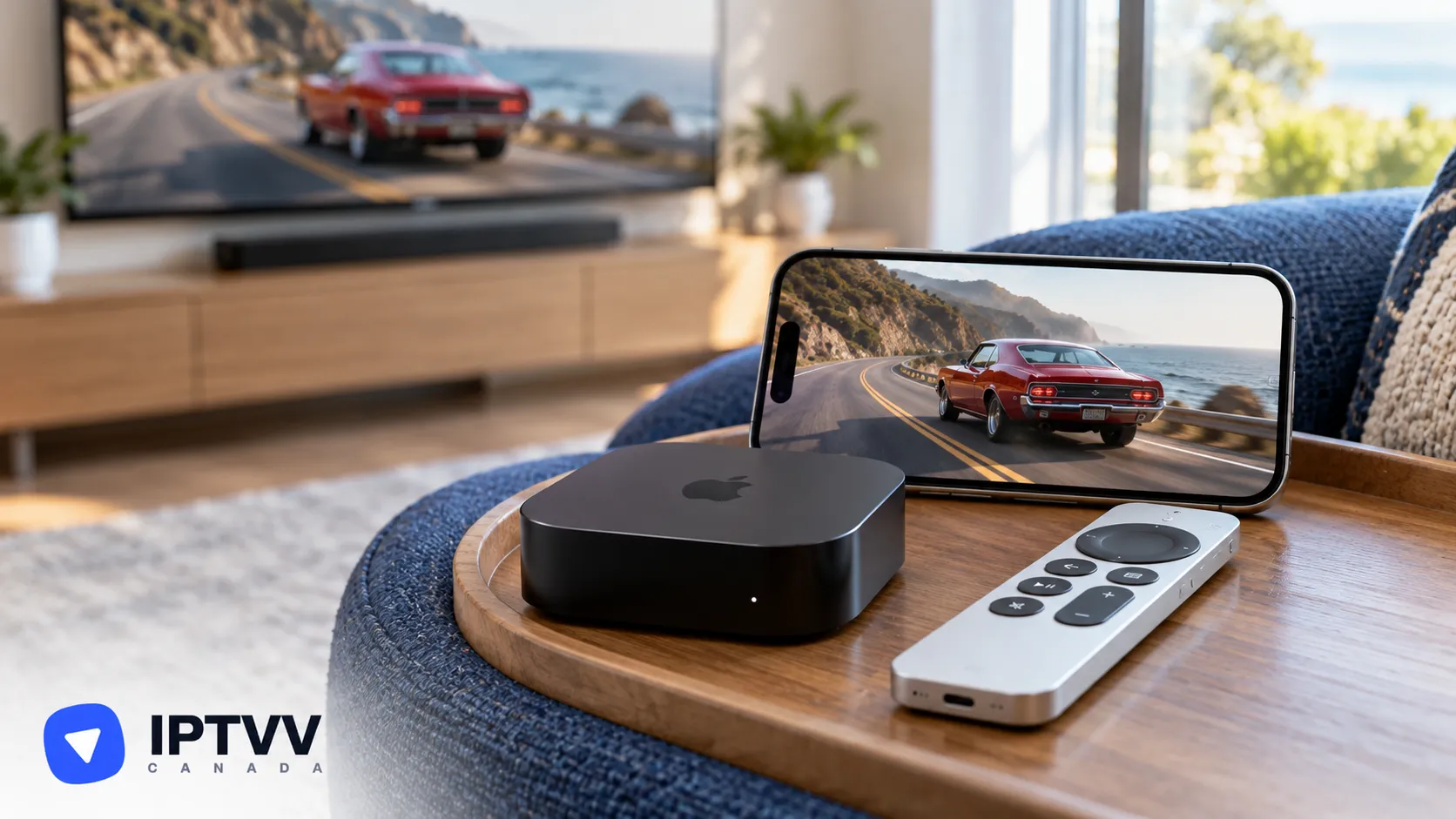
Set Up IPTV On Apple TV, iPhone And iPad
For Apple TV 4K and Apple TV HD, plus iPhone and iPad. Install a player from the App Store and sign in with the login from your IPTVV email. No jailbreak, no extra box.
Read MoreIPTV setup guides for streaming devices: Apple TV & iOS, Chromecast with Google TV, Fire TV & Fire Stick, Nvidia Shield and Roku. Each guide covers the player app to install, signing in with your IPTV Canada login and getting the steadiest picture.
← All tagsFor Apple TV 4K and Apple TV HD, plus iPhone and iPad. Install a player from the App Store and sign in with the login from your IPTVV email. No jailbreak, no extra box.
Read More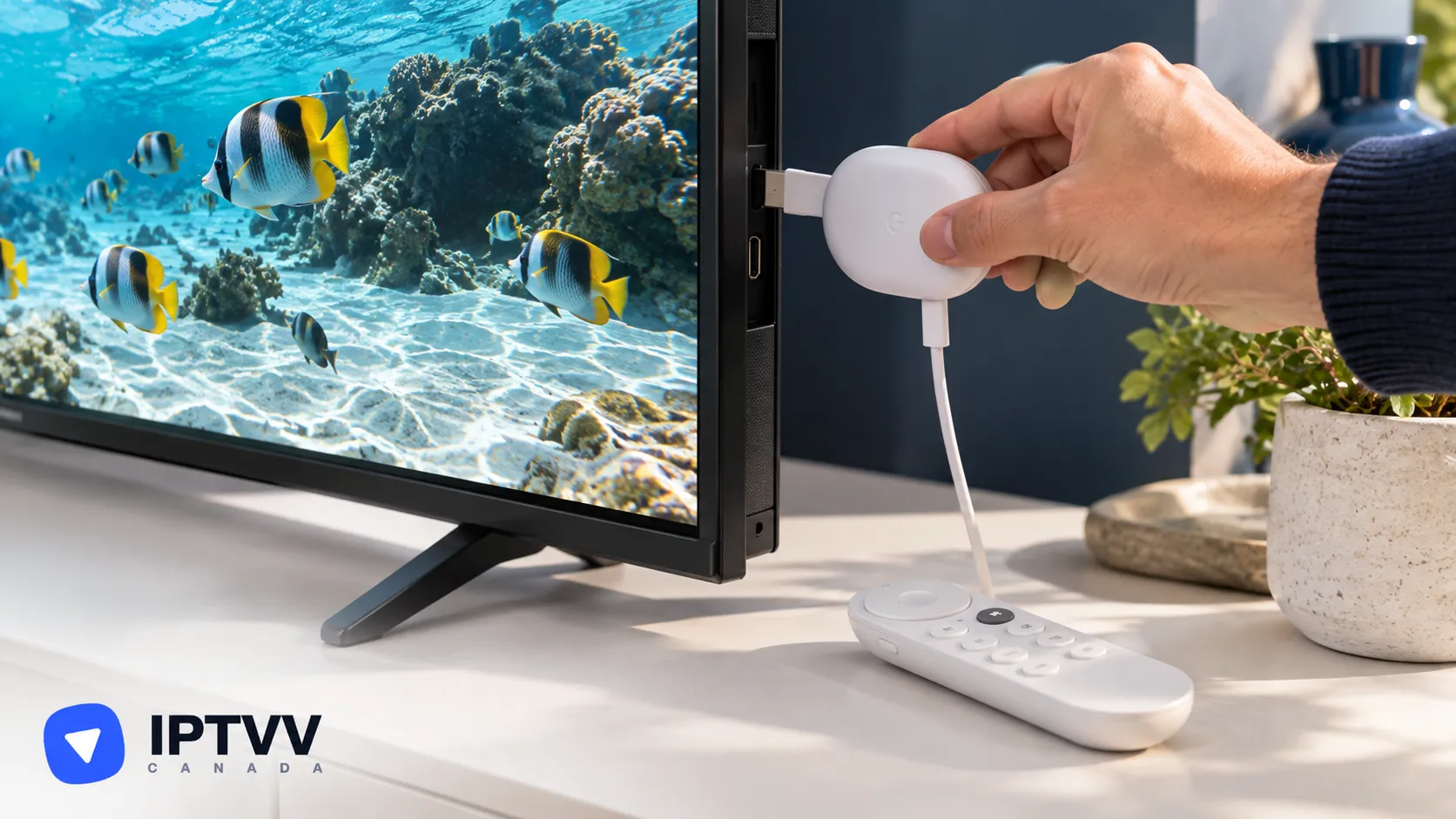
For Chromecast with Google TV (HD and 4K) and the Google TV Streamer. Install a player from Google Play and sign in with the login from your IPTVV email.
Read More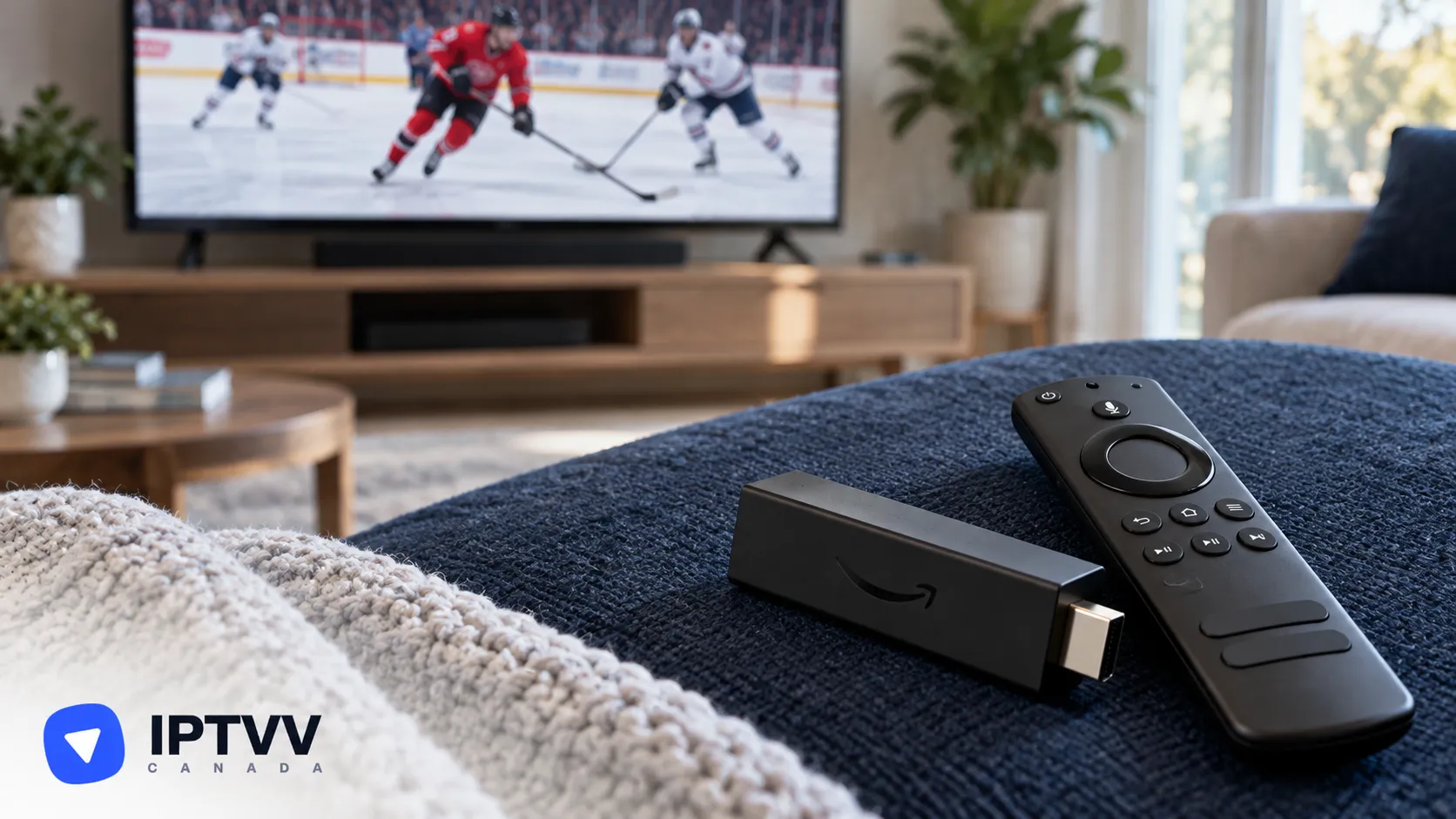
Works on every Fire TV Stick, Fire TV Stick 4K and 4K Max, and Fire TV Cube. You install a free player with the Downloader app, then sign in with the login from your IPTVV email.
Read More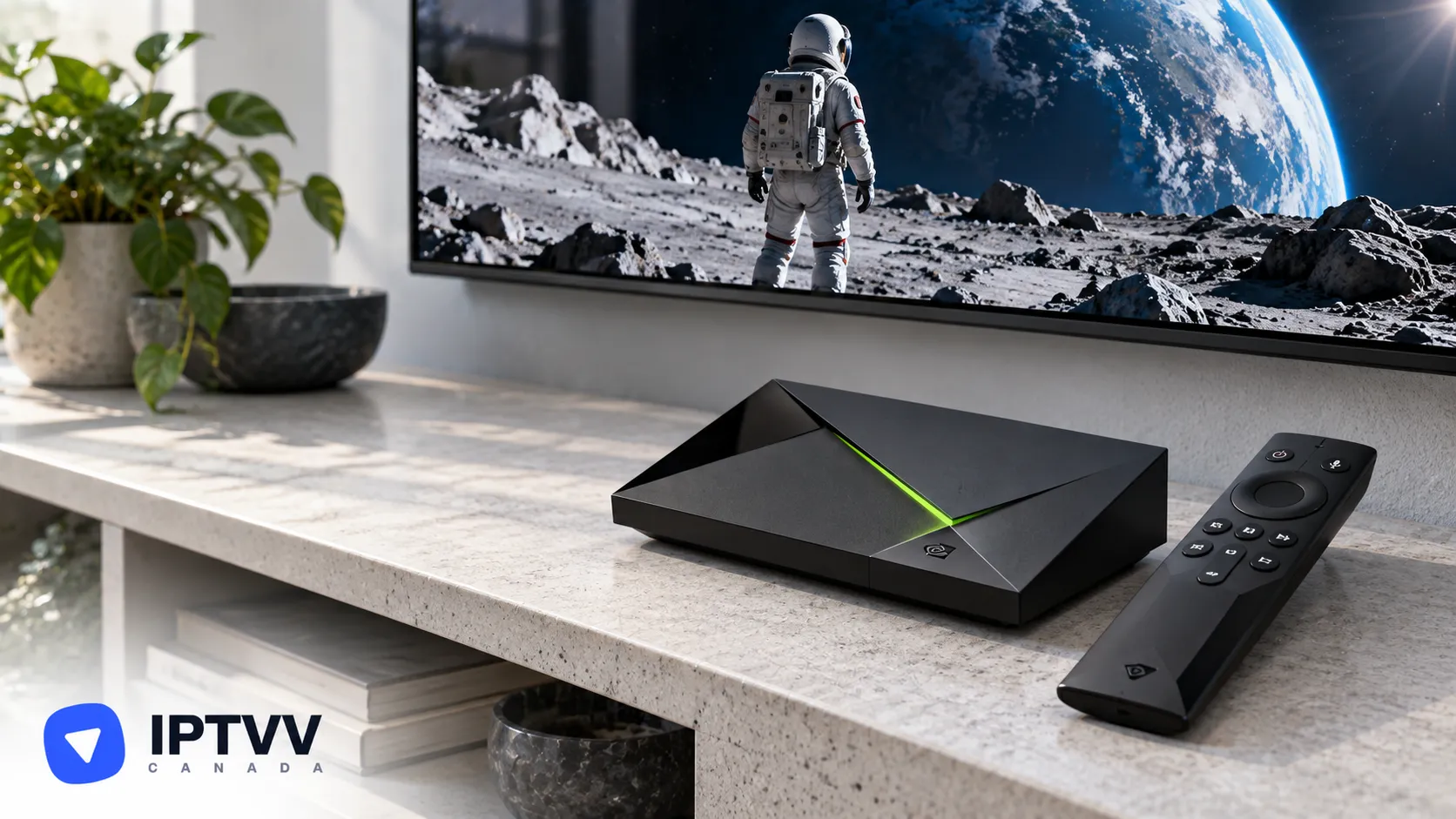
For the Nvidia Shield TV and Shield TV Pro. The Shield runs Android TV, so you install a player from the Play Store and sign in with the login from your IPTVV email.
Read More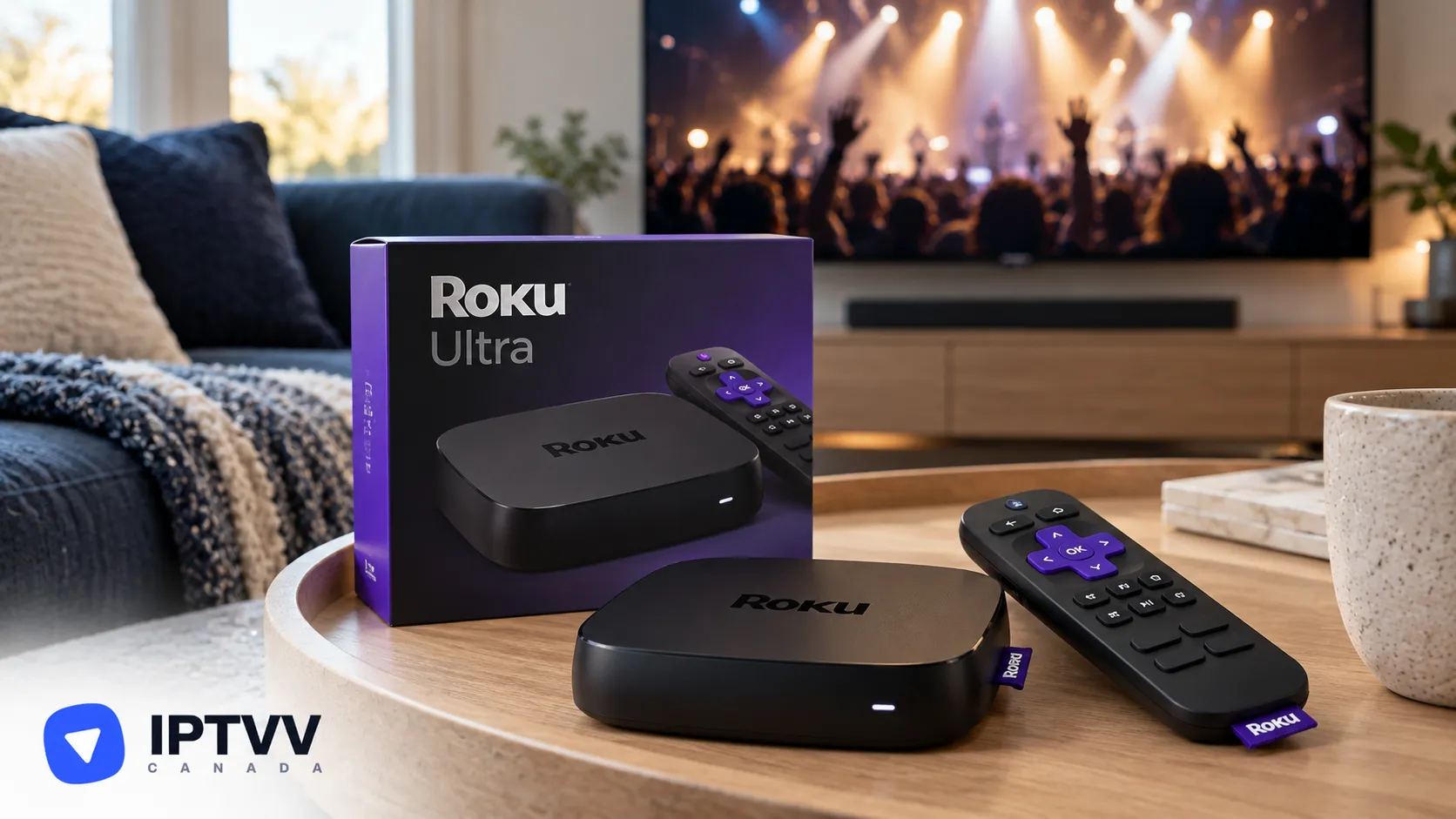
For every Roku device, including Roku TVs, the Streaming Stick, Express and Ultra. Add Hot Player from the Roku Channel Store, then add your IPTVV login on the Hot Player website.
Read More
Test the service on your own devices for 24 hours, no credit card needed. Then pick a plan for 1 to 5 screens, paid once in CAD with a 7-day money-back guarantee.